
How to create a subdomain
Updated November 13, 2026
A subdomain is an address for a separate section of your website, such as blog.yourdomain.com. This article shows you how to create one in cPanel.
You will need to log in to cPanel first. If you can't get in, open a ticket and we'll help. To do that, sign in to our client area, open Support, choose "Open a ticket", give it a subject and choose Continue.
- Log in to cPanel.
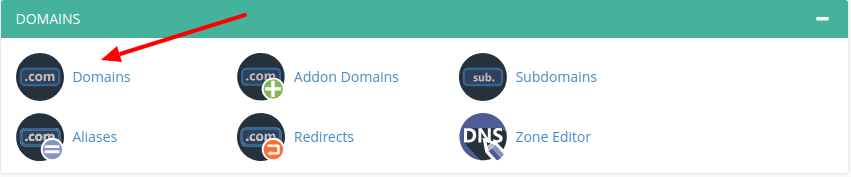
- On the cPanel main page, find the Domains section and open Domains.
Picture: kualo.com - Choose Create A New Domain.
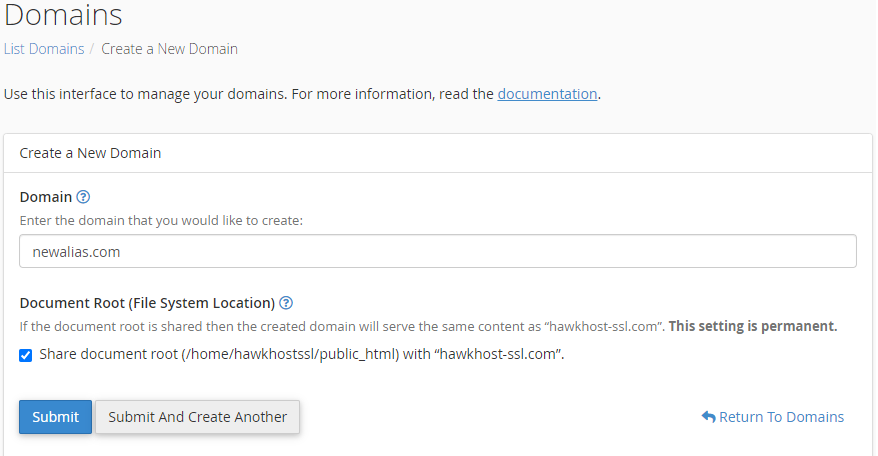
Picture: hawkhost.com - In the Domain box, type the full subdomain you want. For example, type blog.yourdomain.com. If you have more than one domain, such as an add-on domain, use the one you want the subdomain under.
Picture: hawkhost.com - Look at the document root shown on the page. This is the folder where you will upload the files for this subdomain. The default is fine for most people.
- Choose Submit. cPanel shows a message when the subdomain has been created.
Picture: paperform.co

If your cPanel still has a Subdomains icon instead, open it and choose your domain. Enter the prefix for the new subdomain, check the document root, and choose Create.
Your new subdomain then appears in the list on the same page. You can change it or remove it there later.
Adding files to your subdomain
Upload the subdomain's files to its document root folder. You can do this with File Manager in cPanel or with any FTP program.
You don't need to set up FTP access for the subdomain to work. It works as soon as it is created.
When you have finished
To leave cPanel, use the Logout button in the upper right corner. If you are on a public computer, always log out before you close your browser.